Sunday, December 20, 2009

Making Grub2 Nice

Or how I learned to stop worrying and make my boot menu easier to use.

Alright folks, I've been meaning to write this one for a while. Ubuntu/Kubuntu 9.10 decided to switch to the GRand Unified Bootloader version 2. This is great feature-wise and all, but now you have to relearn how to edit the config files!

I've done some studying and found out how to do what simple things I used to do, make the boot menu simple.

So, Open the run command ("Alt F2"/"Alt Space"/Right click on desktop "Run Comand...") and type kdesudo kate (or on Ubuntu gksu gedit)
Let's open up /boot/grub/grub.cfg . This file is only a reference. Let's also make a new file. Let's save it to /etc/grub.d/09_custom .

Let's add some text to 09_custom :

#!/bin/sh
exec tail -n +3 $0
# This file provides an easy way to add custom menu entries. Simply type the
# menu entries you want to add after this comment. Be careful not to change
# the 'exec tail' line above.


Now we take a look at the entry for Windows in grub.cfg.


And paste that right into our 09_custom.

Next, we take a look at the first entry in the linux section of grub.cfg.


and paste that into our 09_custom.


Let's rename the menuentry "Kubuntu".
it's also very important that I changed, in the linux and initrd sections,

/boot/vmlinuz-2.6.31-14-generic
and /boot/initrd.img-2.6.31-14-generic

to simply just

/vmlinuz
and /initrd.img

These always point to the latest version of the files, so it will always boot us to the latest and greatest updated kernel.


The last bit here didn't work. If you want a seperator, take one of the two previous menu entries, copy it there, and simply change the menuentry's name to something like "----------Other----------". It doesn't work with no options between those brackets. Save 09_custom .

Now, open up konsole

And change to the directory with cd /etc/grub.d/ .

If we type ls, we can see that our file isn't green, or executable. This is a requirement, so let's fix this.

Do a sudo chmod +x 09_custom and voila!

Another ls reveals that we've changed the file.
Lastly, we sudo update-grub and it will make our new configurations ready to use.

If we reload grub.cfg, note that it has changed. Make sure to close kate without saving anything to grub.cfg .

We should have shiny new entries in our list. We didn't get rid of the other options, because we want to fall back on them if what we did ever goes wrong. These fallback options look nicer when a proper seperator entry is there.


There you have it! How to fix Grub to that normal people can understand what to do at the boot menu!

Friday, December 18, 2009

Kubuntu 9.10 guide for India :: part 2

Alright, now that we've got Kubuntu running, let's set it up. Let me show you the basics of the desktop.


This is the desktop. We've got a panel with a bunch of widgets, most important, the k-menu and task manager widgets. We've also got a folder view widget set to show the desktop folder's contents. You'll notice that everything is a widget, and this is highly configurable.
The k-menu starts with the favorites tab, you can right click to add/remove items.
Applications are all sorted by category.
The "places" section here will reflect whatever is in the file manager, dolphin's, sidebar.

On the right side of our default panel, we have the devices notifier widget. It's the little computer with a usb symbol on it and a cd popping out of it. It'll pop up when you plug a device in. To eject a disc, or "safely remove" a device, simply pop this open, and click on the eject symbol that appears when you hover over the device.


If the desktop is "unlocked", via a right-click menu, you can click on the cashew icon to configure the panel.


Or the desktop, and manage widgets.


Dolphin is the default file manager. You can add/remove/rearrange things in the sidebar to be more useful. I personally enjoy the fact that there are tabs.


Drivers

This all may be rather unenjoyable without the proper device drivers. Make sure to be plugged into the Internet before installing anything.


If we open up The Hardware Drivers manager from "Kmenu > Applications > System" we can install our drivers. Unfortunately, I've never had luck with this befangled thing. So, we have the ninja way to do this.


Open up Konsole from "Kmenu > Applications > System" .


Install the wireless drivers by typing in sudo apt-get install b43-fwcutter and hitting enter. It'll ask you for a password, and if it's okay to download the drivers, obviously provide the password and say yes. It will not show you any dots or anything else when you type in your password, but don't worry, it'll accept what you type once you hit enter. The wireless may need a reboot to work properly.

Graphics drivers

Only install these if it's for your card, and the desktop effects don't seem to be working. Some ATI cards may work fine with the included open source drivers.

Nvidia Graphics Driver
install

Then open the Konsole and type "sudo nvidia-xconfig" and hit enter.


ATI Graphics Driver
install

Then open the Konsole and type "sudo aticonfig --enable" and hit enter.


Other Things

We might want to install the popular Firefox web browser. Thankfully, although the Kubuntu developers couldn't include it because of size limits of the install CD, they provided a simple installer.


It's found in "Kmenu >> Applications >> Internet".

I would install PlasmaNotify, to have Firefox notifications blend in with Kubuntu native ones.

Also, since you're dual booting, why not consider using Xmarks to sync the bookmarks?

Click on the little "i" in the system tray, and configure. Change the notification system to "Ayatana". You can preview the notifications to understand why I told you to change it.

As I said, you can lock and unlock the widgets, allowing you to remove, move, and configure them. Here I've changed the folder widget to show the home folder rather than the desktop folder.

Go to the System Settings, most easily found in "Kmenu >> Computer". Go to "Keyboard and Mouse >> Global Keyboard Shortcuts >> Run Command Interface" and change the shortcut for Run Command to Alt Space.

Once you get familiar with the names of programs, you can simply hit alt space and then the name of the application. It will show you a list of the most relevant matches to your typing, hit enter to launch the program. It's a real time saver. Check it out.


While we're in Keyboard and Mouse settings, you may have noticed that things are single click in nature. I'd say try and get used to using the green plus on hover to select, but if you'd like to go back to the Windows double clicking, feel free to change the behavior.


Do check out all the different settings. You can change any theme or color if you look hard enough.


For applications, please see my post on installing programs.

You'll be wanting to install the Software Center
install
and going to "Kmenu >> System >> Software Center" to check out all the programs you have immediately at your fingertips.


Things I can think you might want to install.

Kubuntu Restricted Extras
install

A collection of fonts, codecs, flash and java, which couldn't be included in the initial package of an open source package, but are fine to add "aftermarket".

VLC
install

The ultimate media player.

Mozilla Mplayer Plugin
install

Let's you watch embedded videos in Firefox.

Mouse Theme Extras
install

Because many colors to pick from are better than a few.

GIMP
install

Best image manipulation program on Kubuntu.

Kdenlive
install

A wonderful non-linear video editor. I've been using it a lot, and love it. The next version is supposed to be more stable/less crash prone.

Wine
install

Let's you try and use windows programs on Linux OS's. Not recommended for the faint of heart, unless you just wanna play the Orange Box.

Yakuake
install

If you learn to like using Konsole commands, this is a drop down terminal like those found in first person shooters like Quake. Set it to a nice keyboard shortcut, and hide/show the terminal at will. You also might never bother with command line much, so maybe you don't need a terminal open 24/7.


DVD Playback

Here's something I almost forgot. There's two ways to do this. The pay way, or the free-and-legal-but-maybe-not-in-america way. I highly suggest whatever you feel like paying.

One, you could go to Fluendo, and purchase the only consumer Linux-compatible DVD playing software.

Or you could pop open Konsole and do the following.

sudo apt-get install libdvdread4

Hit enter.

sudo /usr/share/doc/libdvdread4/install-css.sh

Hit enter, enjoy. This method let's you play DVDs in all of your current Linux DVD players, like Dragon Player, VLC, and Kaffeine.


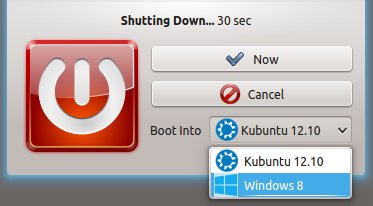
The last thing we ought to do is to fix the menu where you choose to boot up into Windows or Kubuntu. The guide to make that nicer can be found here.

So, have fun!

Kubuntu 9.10 guide for India :: part 1

Yup, another kubuntu-installation-guide-for-person.

This time, It's for a more computer-savvy user, my friend India.

All screenshots are from virtualbox windows.

***

First thing's first, we need a few definitions/points to be assumed before we get to the actual guide.

Linux
Linux is not an operating system, no matter what the idiots selling that netbook told you (That in particular was probably the horrendous "Linpus Lite" - Please install the Ubuntu Netbook Remix on that thing). Linux is a "kernel", the core of the operating system that deals with hard stuff like drivers and memory management. It powers operating systems in many phones (android phones, palm pre, etc), %60 of the Internet (including google and amazon's servers), the new york stock exchange, almost all supercomputers, and personal computers like yours.

KDE
The KDE project went through a bit of rebranding, so this is more up-to-date than most defenitions.

KDE is a project, a community of people, all designing software with their own libraries and graphical toolkits based off of C++ and the Qt toolkit.

The KDE SC (Software Compilation), formerly known as the product "KDE", is the biyearly released, monthly updated collection of KDE software. This includes the plasma desktop, with it's widgets and all, and many utilities to allow you to use your computer.

Package Manager
How you install stuff. See this blog post.

Kubuntu
An operating system designed with all of the underlying versions of the linux kernel and system utilities that Ubuntu uses, but replacing the graphical applications with KDE software, as opposed to GNOME project software.
It is released every 6 months, a few months after a major KDE SC release, so that they can get the benefits of the bugfix KDE SC releases.

Filesystems

NTFS :: Windows default File system, Linux OS's have been able to read/write for a few years now, as does Mac OSX. Use this on external hard drives.
HFS+ :: This is the default Macintosh FS. Only the Mac OS can write to this, but Windows (via bootcamp driver), Linux, and obviously Mac can read such volumes.
FATX or FAT32 :: The old default Windows FS. 32GB Limit. Linux used to have a patent issue with Microsoft over this, but this has been fixed by using different code. All major OS's can read/write. Use this for flash drives.
Ext4 :: The latest and greatest Linux FS. This is the Default FS in Kubuntu as of this release, whilst previously it was Ext3. Only recent Linux based OS's can read ext4 volumes. It is highly recommended for your system, but not external drives. You wouldn't use something like NTFS or Fat32 because Linux OS's need filesystem features like case-sensitivity, symbolic links, and more to run. (That and you'd want to use an open-source filesystem on an open-source operating system.)
Swap :: Linux typically uses an entirely seperate partition for what's known on windows as the "page file" or emergency RAM spillover.

Partitions
I assume that you know this one, but I'll cover it anyways.
Your hard drive is split up into many partitions, or maybe just one, but all hard drives that are being used have a partition table mapping out all available partitions, or contiguous volumes. Your hard drive may have a Windows Vista partition and a manufacturer recovery partition.

This you may not know, here's a quick guide to the device names on linux. This is useful when working with partition managers or formatters.

/dev/sda1

The first part "/dev" is the devices section of our file system,
"sd" is used for hard drives, I think it means sata disk, but it uses the term for older, non-sata devices too.
"a" means that it's the first drive plugged in.
"1" is the partition number.

So, /dev/sdc1, often what my usb stick is, is the third storage device plugged in, first (an in this case only) partition.

***
First, simply choose English.
Then I chose to choose the, top, "Live" option, you can skip many steps by going straight to "install" option, but I'll personally prefer the longer way.

First, if, like me it's in the way, move widgets around until you can axe the OpenDekstop.org widget, or the small one with all the junk on it.
Now we can choose to start the installer.


We still want English.
Timezone was guessed correctly.
I'll assume you're not using a European or Dvorák keyboard. Next.
Here's the important part, partitioning. This is a rather simple partition setup helper. Move the slider to determine how big the Linux area will be. The existing space (in this case windows is /dev/sda1). I'd say give Kubuntu a bare minimum 10 Gb, though 30 Gb is a more comfortable size.
When you are absolutely sure, click continue. It will make those changes to the partition table, resizing and creating.


Here we type in our full name, username (no capitol letters), password, computer name, and decide if we want autologin, encryption, or neither.


This page let's us review everything and then we click on okay.

They reduce the size of the installer, showing you only progress, letting you play around. If the computer is plugged into the internet, or connected wirelessly, it will download some extra stuff they couldn't fit on the disc.


Choose to restart.

It'll spit the disc out. Take it and hit enter.

We've now installed Kubuntu. BUT WAIT! There's part 2! We've got it installed and we're able to choose between Windows and Kubuntu, but it's not setup the "right" way yet. There's still so much to do!

Read Part 2 here.

Package Manager Roundup

It's about high time I write this review.

On all Linux-based operating systems, software is installed via something we call a package manager. A package manager is a program used to install many applications, or "packages". A good analogy would be the iTunes app store, or many game console services like PSN or Xbox Live. A central source where one can download applications from a single, trusted, source.

Of course, on linux operating systems, we aren't limited to one source, but many officially trusted sources, and if we so choose, some personally trusted ones as well. We call these sources and the servers they sit on "repositories".

This review was done using Kubuntu 9.10 "karmic koala". Kubuntu is a linux-based operating system that uses the same sources, or "repositories", as Ubuntu. What differentiates Kubuntu and Ubuntu is that whilst Ubuntu uses the desktop and programs designed by the GNOME project, Kubuntu opts to utilize the desktop and applications from the KDE project.

Enough background! I've rounded up 3 major package managers to review: Kpackagekit, Ubuntu Software Center, and Adept.


Kpackagekit

Kpackagekit takes it's name from the fact that it's designed for a KDE OS, "K" and the underlying technologies it uses, "packagekit". Points off for the confusing name. However, if you navigate to it in the system settings, it has a much friendlier name, as KDE has begun to do with many things with unwieldy names.

When one opens Kpackagekit, they are greeted with a large blank space. Kpackagekit gets points off for not including any sort of categorial "browse" view, opting for a completely search-based interface. The search interface does sport some impressive searching options.


All-in-all, I found the interface to be jumpy, moving things when I clicked on them and a little jittery. The search results came up with rather funny things (showing the user things like libraries and other stuff they wouldn't be interested in). Also, I've found it to be rather crash-y. Probably the worst type of program you want to have crash on you, leaving partially-installed programs.


A few redeeming qualities, I ran the whole program in user-mode, meaning it always themed and blended into my desktop. Also, it's easily available as a module inside of the KDE system settings. That's a huge plus. Also, kpackagekit shines in areas I didn't focus, like updates, offering you a breakdown of bugfix/security/feature updates. One of the neatest features I found for power users would be the history.


I'm not sure why Kubuntu chose this as a default in 9.10, hopefully they were just assuming it would be get good enough for 10.04, and they ought to switch now.
5/10


Adept

Adept used was the default package manager for Kubuntu for quite a few years, even receiving a gigantic overhaul in user-friendliness with it's KDE 4 series rewrite.

Click here to install.

When you open up Adept in it's normal view known as "Add/Remove Software" in the menu, you are greeted with a browser view. There's columns of categories, large lists, and a simple search bar.


It features the strange "expand for info" paradigm in the list as Kpackagekit does, which causes the interface to freakishly "jump". Points off for that. However, the interface is nice, easy to read. It follows the "check check check, go!" method of management, only applying the changes once you're certain about them. I really like this feature. It also includes a "preview" view, to review and alter the changes you're proposing, this is a great plus.

Sadly, however, this entire program must be run with root, or super-user, priveledges, and cannot be running while another adept/synaptic/old-style-package-manager is running. This means that not only do you not have the program running with your custom themes, colors, or icons, but it's also less secure. You'll notice that despite my dark theme, the program is running with the default light theme.

Adept does not have update applets with it, so it can't tell you when there's new updates, so you wouldn't be removing Kpackagekit if you used this. It does shine in exposing the user to software.
7/10


Ubuntu Software Center

For the 9.10 version of Ubuntu, the Ubuntu developers decided to replace all of the utilities for their Operating system with a simpler one, which they wrote. Remember how I told you that Ubuntu and Kubuntu share software sources, or repositories? This means that any program available on one, is on the other.

Click here to install

The Ubuntu software center surprised me with how lightweight, dead simple, and responsive it was. You open up to a click-through category interface. This removes the need for a whole column taking up space for categories.

What struck me when I started up the program, was that it adopted my icons, something that GNOME project applications often do not. it actually fit right at home in Kubuntu. The integration is also helped by the fact that it runs in user-mode, retaining your colors and theme, rather than open up in root, or super-user, mode.


Notice how instead of the "expand" paradigm, they take you to a full page with screenshots and information on the application. This is wonderful. There are easy buttons to go the website or to install.


The installation process happens right away, with no way to review the process before it happens. It's done for simplicity sake, but this is a case of simple v. simplistic. The only negative point I found.


The search came up with a small list of relevant choices, there's a place to see your installed applications, and note how the software section is called
"Get Free Software". It's clear, to the point, and points to a possible inclusion of proprietary, or non-free, software.

All-in-all it's a fast, responsive. I expected it to be out of place my Kubuntu system, but it was perfectly blended. I like the option to only show Canonical (the company behind Ubuntu and Kubuntu) maintained applications. The search is simple and highly effective, and the selection of applications neither favored GNOME project software, nor included complicated things like libraries (which are automatically installed as programs that need them are installed). The only thing I was left wanting was a "Checkmark --> Apply Changes" paradigm, but that might be my old-hat thinking.
9/10


Conclusion

Leave Kpackagekit installed for it's superior update service, rather than trying to find whatever adept used to, or what ubuntu uses now.

And install the Ubuntu Software Center, a marvelous application.

Many point out that the freedom of choice is one of the biggest Linux blessings, I'd like to also add that The ability to install any of the same applications between Ubuntu and Kubuntu is a hugely appreciated blessing as well, that many GNOME/KDE purists ignore.

Kpackagekit is included with Kubuntu 9.10 .

Click to install Adept
install

Click to install Ubuntu Software Center
install


Interview with JontheEchidna

For a paper explaining what things about New England's love of freedom and teaching and such brought me to love CS and programming.

John's blog can be found here: http://jontheechidna.wordpress.com/

Thank you so much Jon, could you briefly introduce yourself?


Hi, I'm an 18 year old student living in the Tilton/Northfield area of New Hampshire. I've always liked computers and videogames and hope to see more of both in my future.


When did you first become interested in GNU/Linux ?


About three or four years ago I finally became fed up with how slow Windows was on my computer. My father, and engineer, had this thing called Linux that he always used. (I had even played Xbill and xboing on our 486 when I was younger.) Being fed up with Windows, I tried Fedora with KDE as an alternative. I liked it a lot, but still wibbled between it and Windows. (Games...) But this sparked my interest in Linux as an alternative in general.


How did you get involved with KDE and Kubuntu?


About two years ago my dad came home with an Ubuntu CD. I popped it into the computer and promptly did not install it due to the brown background. A bit I learned that there was a KDE Ubuntu; namely Kubuntu. I found this to be much more visually pleasing than Ubuntu, to say the least. It was also KDE, which I was familiar with. I started to use Kubuntu more frequently until I used it most of the time.


One day I somehow found myself browsing dot.kde.org (now kdenews.org) and saw something about KDE 4. “Wow, 4 is bigger than 3. This ought to be cool!”, I thought, so I did some research. Being the geek I am, KDE4 got me really excited. When Kubuntu made available its KDE4 Live CD I tested it and (understandably) found some things that I felt needed changed. I popped into the Kubuntu irc chat room and voiced my opinions. A nice person named Lydia brought me to the Kubuntu Development chat room where I was able to give my opinions to the developers. I hung around there and gradually became involved in both Kubuntu and KDE.


What's your favorite application?


Good question. I think I have to answer KMail here. It was able to quite completely replace the need for Thunderbird for me with little effort on my part. Plus it was about 10 times as good looking too. KMail has served me faithfully for a year now with nary a crash, which is something to be said.


I noticed by a network speed test on your blog that you live in New Hampshire, how do you feel that the New England culture has effected you concerning your work in the free software/ open source world?


Well, to be honest when I moved to New Hampshire five years ago I didn't have very many neighbors around my age at all. My parents insisted on homeschool so I also didn't really have much of a social life other than church. Instead I spent more time with computers (and videogames), which is probably why I'm involved with the open source world today. But who can really say what would have happened if I had not moved to New Hampshire?


I'm also doing some researching about other people and things, one being the infamous RMS. Any thoughts?


My opinion's a bit mixed here. His ideals and opinions are a bit too extreme for my tastes, but on the other hand I must admit that he has done a great service to the open source world. If he ever read this interview he would probably get mad since I didn't refer to the Linux operating system as GNU/Linux, which makes me a bit depressed.


Watching him “Crank Dat Soulja Boy” with a bunch of MIT people on YouTube sorta makes up for it, though.


Project Timelord, can you talk a little about this? I understand it's on the blog, but a brief summary of why it's important to you.


Project Timelord is basically a fancy name for an effort to get Kubuntu on the path to success, through a roadmap of ideas and solutions to make sure that we are using our limited resources in the most efficient manner. It's really just the results of a few developers taking a retrospective look at Kubuntu and seeing what we can do better. After we did that, we slapped a name on it, publicized it, and started implementing it!


Project Timelord is important to me because Kubuntu is important to me. If we are successful in the implementation of Project Timelord both Kubuntu and KDE will benefit. I am excited to see how this all pans out.


***

Just personal curiosities...


I am also a huge Doctor Who fan. Excited for the 11th Doctor?

Oh yeah, definitely! But, quite frankly, I have had a hard enough time waiting for the special that's due to arrive November 14th. I have no clue how I will be able to hold out for season 5. (Or should I say series 5, as the British do?)


Another Simple Curiosity, I've always wanted to know if your screen name JontheEchidna has anything to do with the Sonic the Hedgehog franchise.


Bingo. As I have said before, I like video games. Sonic 2 was my first video game, and I've always loved it. After playing Sonic 3 & Knuckles I thought Knuckles was really cool, so when I got my first email address it involved echidnas, being 12 and all. After that, almost every other screen name I've had since then has involved echidnas in one form or the other.

Thank you,

I will most likely post this interview on my blog, if that's alright with you.

I appreciate the time you took to answer my questions.

***


See? a big part of Kubuntu and he's much younger than I! I better get crackin' at those C++ books and get to work!

Monday, October 5, 2009

Cities of the Future

Here we are. The obligatory concert blog.

Simon first introduced me to Infected Mushroom on a mix CD that a lot of people got from Simon with Mr. Bungle and Infected on it. A few people remember this specific CD, like the CDs that Nick distributed of our videos.

Simon has been a fan of Infected Mushroom since he was 12. About as long as I've been into Daft Punk. So, needless to say, this trip had some childhood dreams going into it for him. He'd also never been to NYC.

I've been a huge fan of Infected Mushroom, more and more. During my time as a film major, I used their music (mostly the earlier non-vocal stuff) in my videos. BTW, this was my first concert. What an experience to set the standard.

We took the china town bus from Boston to New York City. This was a four hour ordeal. Nice bus for so cheap. China town was fun. We walked our way up Broadway and such streets until we reached times square. It is quite breathtaking to see times square at night. Simon didn't grasp why I wanted to see it so badly until we got there. I wasn't going to miss out on times square my second trip to NYC. I picked up a nice flat cap from one of the street vendors and we had a gyro. Good eats.

***

It's kind of ironic, gyro. The show was the release party for their album, The Legend of the Black Shawarma. a shawarma is a middle eastern dish kind of similar to a gyro.

We got to the club, and the line was already forming. There were so many nice people in black or dressed candy. We met and talked with a nice couple from Connecticut. A lot of these lucky people had seen them before.

I sprung for the VIP tickets, because if you can only do something this awesome once, you better do it right the first time. The VIP area was a second floor surrounding the pit.

For the first two and a half hours there were DJs playing awesome trance and other club tunes. Very cool, but I was getting antsy for the main event.

I noticed something Jonathan Davis was playing some DJ sets. He broke out his Macbook Pro to load up songs from. The best damn thing Apple ever did was make their laptop logo light up.

And then they came.

***

First was Rogério Jardim, the drummer. Then Tom Cunningham came out with his guitar. Erez Eizen then set up the keyboard stuff and everyone screamed. No sign of Duvdev (Amit Duvdevani).

They opened with Converting Vegetarians, an awesome song. Just when the vocals hit, Duvdev came out in a big shark costume. What a nut. The crowd was amazing. He went into I Wish from there.

It was at this point that I noticed how privileged I was to hear these classic psytrance songs redone in Infected's new psyrock style.

From there every other song was one from the new album. They did feel new, as the crowd hadn't yet memorized the lyrics. The one new song that caught my attention was Can't Stop. Cities of the Future was crazy, but bar none could compare to the energy when Becoming Insane led the vibrations in the club. It is definitely the most popular track. Special Place took me completely by surprise. I'd completely forgotten the whole "Bring it up, bring it up, don't take me doooooown" bit of that song.

The show was so fun. Duvdev up on stage fed completely off of the crowd's energy and we definitely gave him plenty to feed off of. He would hop around the stage, moving the microphone closer to Erez's keyboard, head butting the drums, and waving a drumstick like commanding the crowd as a conductor. At one point he even stummed Tom's guitar with his mic. The Shark costume made a comeback at one point.

What was amazing was that after the farewells, the crowd called for "one more song". They gave it to us, but then we asked for another. Y'know what? They gave us the second encore we wanted! They finished with Bust-A-Move.

The show was just more incredible than I ever expected it to be.

***

It was 1:45 am when they left. We grabbed our VIP signed posters and left the club. We had to stay awake until the 6:30 am bus.

Our first destination was food. We knew we needed to eat fourth meal to stay awake. There was a diner we'd grabbed the address of beforehand. Not bad. Eggs and toast were about the only thing I could stomach at that point.

Simon and I couldn't leave NYC without a visit to the Apple Store. It was 24h's we were up at 3am. Why not?

It was cool, just like any other Apple store, but bigger. The real special thing was the staircase and glass elevator that it surrounded. That was neat. You've no doubt seen photos, to the street, the store is just a glass cube with a levitating illuminated apple symbol. You go down the stairs to get to the real store.

At that point we made our way to a 42nd and were nearing dead and frozen. After a little squabble about subway v.s. taxi, we took a cab back to the Fung Wah bus station.

6:30 took forever to roll around, but we were pretty much set. Anything else that happened from there was padded with black holes from falling asleep. I didn't get back to Keene until about 11pm (we slept at Simon's a bit).

***

All in all, completely amazing trip. NYC and Infected Mushroom. Live. In person. Wow. I'm still in shock. So is my body. Man am I sore from all the nonstop walking, then dancing, then walking. :D

Friday, September 18, 2009

Re: How Should Mac Apps be Distributed?

I just read How Should Mac Apps be Distributed? which is a response to Improving the Mac Installer for Firefox


I see these kind of things all the time. It's one of the main things I make sure to cover during my intro to mac class at Diversified Computers: How to Install applications. People have no idea what the hell "disk image" even means. It's too technical and abstract for them. I don't blame them.


***


Here's my idea for Apple to make their lives easier. Let's make the simplest system simpler.

Take the whole download zip file, extract, and copy to Applications thing, and make it a single button. Kind of like apturl on Ubuntu or One-Click on SuSE Linux.


1-Click example

Ubuntu Apturl


The only difference, is that instead of calling the install from a centralized location, it would download the zip or dmg and automatically move the right files around, or run the right installer (for those that require it).


Afterwards, it should tell you it was successfully installed to the Applications folder, maybe even ask if you want to add it to the dock.


Then websites would have a wonderful "install" button that takes all the steps and reduces it to one!