Showing posts with label kubuntu. Show all posts

11 April 2011

Lunarcloud's Cross-Platform Qt App Template

When I write Qt Apps, or Java apps for that matter, there's a bunch of things I have to do to get it to a starting point that I'm happy about.

Although these are crossplatform languages/tools, it's very easy to write yourself into a specific platform, or easier, to look half-assed on platforms you care less about/ don't use much.

This is why I decided to create a Qt Creator template.


This template should provide something important for each of the big 3 OS's.

Windows
We enable blur behind, extending the glass to the toolbars, and other Windows sexiness found here: http://labs.qt.nokia.com/2009/09/15/using-blur-behind-on-windows/

Also, the taskbar icon and progress bar support from ECWin7 is included for use: http://www.msec.it/blog/?p=100

The only Windows 7 goody that couldn't be integrated was Jumplists. The only Qt implementation is found is a really nice commercial package. http://www.strixcode.com/q7goodies/ NOT INCLUDED - COMMERCIAL.

There's also an rc file and ico.

Mac OSX 
For Mac, I included an empty menu to add actions to, which will show up as the dock's menu.

I also turned on unified title and toolbar, creating the very mac effect of your toolbars being on the outside of the app, like in Finder or iTunes.

There's an included icns icon file.

Kubuntu / Ubuntu / Debian
For the debian family of Linux OS's, I included the files necessary to create a .deb using cdbs tools.
simply cd to your project directory and run

debuild --no-tgz-check
This will create unnecessary files, some of which can be cleared out by running
make clean

There's also a .desktop file,so when you install the deb you've made it'll show up in the gnome/kde menu, and a png icon.

Download
http://code.google.com/p/cross-platform-qt-template/downloads/list

11 December 2010

Login to Kubuntu with Your Face

Installing
Use the Software Repository Guide to add the following repository to your software sources list:
ppa:antonio.chiurazzi

Allow it to reload and check for new software updates.

Search for and install:

pam-face-authentication


We're going to have to do a little command line dirty work.
Open up Konsole (KMenu -> Applications -> System -> Konsole / Terminal)

Run these two commands


cat << EOF | sudo tee /usr/share/pam-configs/face_authentication /dev/null
Name: face_authentication profile
Default: yes
Priority: 900
Auth-Type: Primary
Auth:
[success=end default=ignore] pam_face_authentication.so enableX
EOF


sudo pam-auth-update --package face_authentication


We can close the Konsole.


Training
Make sure you take a LOT of pictures of yourself at diffirent distances away from the camera with the face trainer app (KMenu -> Applications -> Lost & Found  -> Qt Face Trainer).


You might want to go into the advanced settings and increase the security. It makes it harder to train and use, but it helps prevent people logging in with a simple photo of you. It also helps if you normally wear glasses, because you have to take them off for this to work well.


Finished!
Now reboot your computer, and at the password prompt, simply hit enter without a password. The face recognition dialogs will pop up!


Uninstalling
To remove all this wonder :( , run these commands.


sudo pam-auth-update --package face_authentication

sudo rm /usr/share/pam-configs/face-authentication


sudo apt-get remove pam-face-authentication

05 December 2010

Leaving the Apple World

4 December, I spent my final working hours at Diversified Computers. I worked as an educator, temp web developer, and occasional salesman at the Apple specialist for nearly 3 years.

It was an exciting and interesting experience that led to my involvement with a diverse range of older people. It was always a trying time getting Apple OS 9 users to understand how modern computers work, and fun to help someone learn how to turn their photos into Christmas cards and calendars. One gentleman, who was always concerned with his website and myriad of passwords, always said Cyberduck in the most amusing old man way.

I've moved away from iPhone development in preference of the Android platform, and hopefully someday, the Meego platform. Clearly more fun and more accessible, the tools being available on the big 3 OS's, rather than one.

I've also been dual booting on my macbook again to make development in several of my college courses easier. Honestly, I keep OSX around for testing my Qt apps' portability to OSX.

Not having the Mac Orientation class to teach anymore, I can focus on both studies and my Kubuntu book. Also, I have a feeling my next laptop is likely to be something I get with my Linux Foundation membership discounts to Dell, HP, etc. or System76.

Farewell Apple World, there were plenty of technical and software-human interaction ideas you taught me. Have fun turning your PCs into iPads.

08 April 2010

Kubuntu 10.04 Setup Guide


Much of this guide is going to be similar to the other guide, and the installation part before this is the same as described here, except that now there is a pretty slideshow when it installs.

You can download Kubuntu 10.04 here .

Concepts


This is the Kubuntu 10.04 (Lucid Lynx) default desktop. I tell a lie, I've right clicked on the Kmenu (blue lower right button) and changed the icon to an alternate, more Kubuntu themed, icon.

The Kmenu is your Application Launcher/Folder Launcher/Search bar/Power Options menu. Similar to a start menu in Windows, but vastly more usable and more powerful.


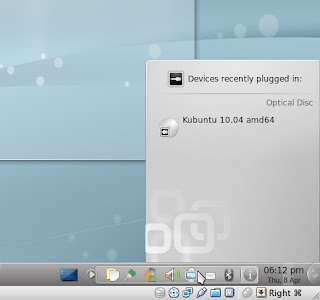
In the lower right corner, we have the system tray, a spot where the system holds a bunch of little applets (mini programs that help do things). If you expand the system tray, you'll see the device notifier. This will automatically pop up when you plug in removable media, such as USB drives and DVDs. You can Eject/Safely remove these devices from this menu.

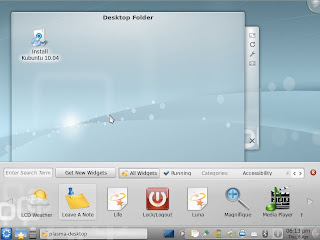
If we click on the toolbox in the upper right corner and click add widgets, we get a nice menu of widgets to place on our desktop.


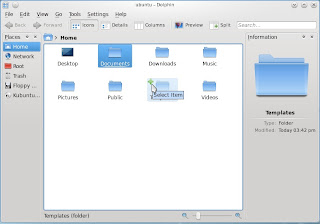
This is the default file manager, Dolphin. Please note that files are single click to open, and have little selector/deselector icons in the upper left when you hover over them. The usual Shift Click and Ctrl (Command for Mac) Click shortcuts from Windows and Mac will work here. This can be set to a double click to open behavior in the settings, but I suggest getting used to single click.

Refresh Software Sources

Before we do anything, we should connect to the internet and update the computer's software sources. Let's go to: "System Settings → Add and Remove Software → Software Updates" , and hit refresh.
Otherwise, we run into a lot of funky problems with things not installing.

Graphics / Wifi Drivers
If we open up The Hardware Drivers manager from "Kmenu → Applications → System" we can install drivers for devices without built-in, open-source support. Remember to reboot after all the
drivers have finished installing.

If you get a choice between the Broadcom STL driver and the Broadcom B43 driver, go for the STL driver. It's easier and more stable in my experience.
We can test the graphics drivers by going to "System Settings → Desktop → Desktop Effects" and enabling the effects. Nice little side effect, most computers run faster with these desktop effects turned on.

Highly Suggested Software

KInfoCenter
install
It's weird that they never included an application to see your computer's information. Here you can check to see how much RAM you have, what graphics driver you're using, what kind of processor is in the computer and such.

Ubuntu Software Center
install

We definitely ought to install the Ubuntu Software Center. This is a superior tool for browsing and installing applications for the average user. You can see a full explanation/review here, I highly suggest reading that if you are newer to Linux-based operating systems.
You can find it in "Kmenu → System → Software Center"

Kubuntu Restricted Extras
install

A collection of standard fonts, audio/video codecs, flash and java, which couldn't be included in the initial package of an open source package, but are fine to add "aftermarket".

Firefox

We might want to install the popular Firefox web browser. Thankfully, although the Kubuntu developers couldn't include it because of size limits of the install CD, they provided a simple installer in "Kmenu → Applications → Internet".


Kaffeine
install

Amazing and powerful media player. Has some features that Dragon player may be missing.

Extra Mouse Themes
install

Because many colors to pick from are better than a few.

Kamoso
install

If you've got a webcam, it's worth checking this out. It does install VLC, a video player which you may not need, but that allows it to record videos. Cheese is another good one.

GIMP
install

Best image manipulation program on Kubuntu.

Kdenlive
install

A wonderful non-linear video editor. I've been using it a lot, and love it. You can record your desktop, from webcam or video camera, edit, add effects, and publish to DVD or youtube. Great application.

Wine
install

Let's you try and use windows programs on Linux OS's. Not recommended for the faint of heart, unless you just wanna play the Orange Box.


Better Notifications

One test feature that didn't make it into Lucid Lynx, was the "Ayatana" notifications. Think of these like Growl on OSX, ayatana notifications is what Ubuntu has.

To remedy the situation, the guy who wrote original code for the Kubuntu ayatana is releasing the notification system in a separate package, calling it "Colibri".

install

Just download, install, right click on the "i" in the system tray, and turn of application notifications. Reboot.


Skype
Video chat is a wonderful thing. Unfortunately, few Linux applications make it fun or easy. This is where skype comes in. It's as simple as any other instant messaging client, and has great sound quality. Remember that the version you download should be the same as the version of Kubuntu you installed.

32bit (x86) Machines
install

64bit (amd64) Machines
install


DVD Playback

Here's something I almost forgot. There's two ways to do this. The pay way, or the free-and-legal-but-maybe-not-in-america way. I suggest both ( or whatever you feel like paying).
___

The most legal method has us go to Fluendo's website, and purchase the only consumer Linux-compatible DVD playing software. It's not that expensive ($27), and works rather well.

install
___

Now for the open-source alternative. This method let's you play DVDs in all of your current Linux DVD players, like Dragon Player, VLC, and Kaffeine.

Install the prerequisite:

install

Now, open up Konsole, and type/copypasta

sudo /usr/share/doc/libdvdread4/install-css.sh

Hit enter, enjoy.


Games

Why not check out PlayDeb? They've got a great list of updated versions of things for the Linux gaming scene. It's a real awesome site. Install their package, and click on their links.


The last thing we ought to do (If you are doing a dual boot thing) is to fix the menu where you choose to boot up into Windows or Kubuntu. The guide to make that nicer can be found here. I am still working on a GUI program to do this for us.


Enjoy!

featured on: OMG Ubuntu!

20 December 2009

Making Grub2 Nice

Or how I learned to stop worrying and make my boot menu easier to use.

Alright folks, I've been meaning to write this one for a while. Ubuntu/Kubuntu 9.10 decided to switch to the GRand Unified Bootloader version 2. This is great feature-wise and all, but now you have to relearn how to edit the config files!

I've done some studying and found out how to do what simple things I used to do, make the boot menu simple.

So, Open the run command ("Alt F2"/"Alt Space"/Right click on desktop "Run Comand...") and type kdesudo kate (or on Ubuntu gksu gedit)
Let's open up /boot/grub/grub.cfg . This file is only a reference. Let's also make a new file. Let's save it to /etc/grub.d/09_custom .

Let's add some text to 09_custom :

#!/bin/sh
exec tail -n +3 $0
# This file provides an easy way to add custom menu entries. Simply type the
# menu entries you want to add after this comment. Be careful not to change
# the 'exec tail' line above.


Now we take a look at the entry for Windows in grub.cfg.


And paste that right into our 09_custom.

Next, we take a look at the first entry in the linux section of grub.cfg.


and paste that into our 09_custom.


Let's rename the menuentry "Kubuntu".
it's also very important that I changed, in the linux and initrd sections,

/boot/vmlinuz-2.6.31-14-generic
and /boot/initrd.img-2.6.31-14-generic

to simply just

/vmlinuz
and /initrd.img

These always point to the latest version of the files, so it will always boot us to the latest and greatest updated kernel.


If you want a seperator, make a menu entry like "----------Other----------". Be sure to hit enter once or twice after the last menu entry or it wont work and save 09_custom .

Now, open up konsole

And change to the directory with cd /etc/grub.d/ .

If we type ls, we can see that our file isn't green, or executable. This is a requirement, so let's fix this.

Do a sudo chmod +x 09_custom and voila!

Another ls reveals that we've changed the file.
Lastly, we sudo update-grub and it will make our new configurations ready to use.

If we reload grub.cfg, note that it has changed. Make sure to close kate without saving anything to grub.cfg .

We should have shiny new entries in our list. We didn't get rid of the other options, because we want to fall back on them if what we did ever goes wrong. These fallback options look nicer when a proper seperator entry is there.

There you have it! How to fix Grub to that normal people can understand what to do at the boot menu!

18 December 2009

Kubuntu 9.10 guide for India :: part 2

Alright, now that we've got Kubuntu running, let's set it up. Let me show you the basics of the desktop.
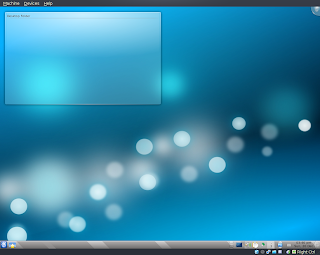


This is the desktop. We've got a panel with a bunch of widgets, most important, the k-menu and task manager widgets. We've also got a folder view widget set to show the desktop folder's contents. You'll notice that everything is a widget, and this is highly configurable.
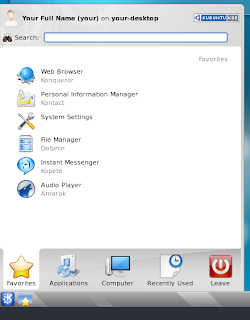
The k-menu starts with the favorites tab, you can right click to add/remove items.
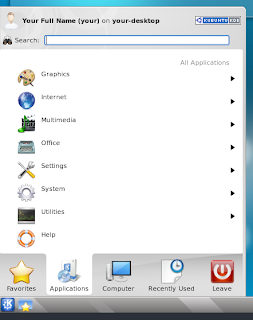
Applications are all sorted by category.
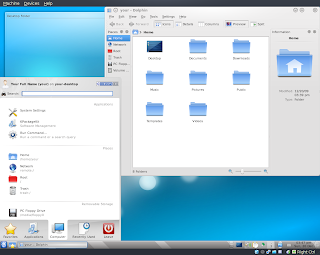
The "places" section here will reflect whatever is in the file manager, dolphin's, sidebar.
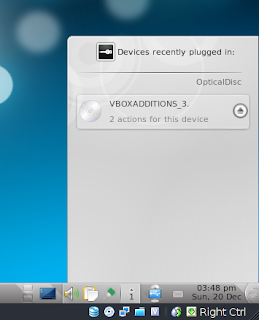
On the right side of our default panel, we have the devices notifier widget. It's the little computer with a usb symbol on it and a cd popping out of it. It'll pop up when you plug a device in. To eject a disc, or "safely remove" a device, simply pop this open, and click on the eject symbol that appears when you hover over the device.


If the desktop is "unlocked", via a right-click menu, you can click on the cashew icon to configure the panel.


Or the desktop, and manage widgets.
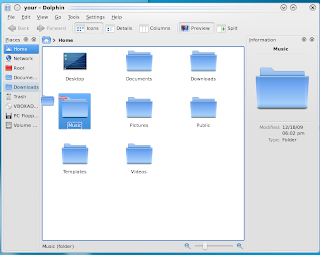


Dolphin is the default file manager. You can add/remove/rearrange things in the sidebar to be more useful. I personally enjoy the fact that there are tabs.


Refresh Software Sources
Before we do anything, we should connect to the internet (and double check you are online) and update the computer's software sources. Let's go to: "System Settings >> Add and Remove Software >> Software Updates" , and hit refresh.
Otherwise, we run into a lot of funky problems with things not installing.
Closed-Source Drivers
This all may be rather unenjoyable without the proper device drivers.

If we open up The Hardware Drivers manager from "Kmenu > Applications > System" we can install our drivers. Remember to reboot after all the drivers have finished installing.
We can test the graphics drivers by going to "System Settings >> Desktop >> Desktop Effects" and enabling the effects. Nice little side effect, most computers run faster with these desktop effects turned on.


If this doesn't work, there is the more ninja way to install the non-open-source drivers.
Open up Konsole from "Kmenu > Applications > System" .
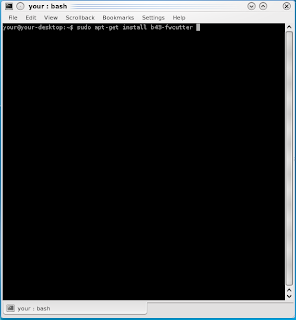

Install the wireless drivers by typing in sudo apt-get install bcmwl-kernel-source and hitting enter. It'll ask you for a password, and if it's okay to download the drivers, obviously provide the password and say yes. It will not show you any dots or anything else when you type in your password, but don't worry, it'll accept what you type once you hit enter. The wireless may need a reboot to work properly.

Graphics drivers

Only install these if it's for your card, and the desktop effects don't seem to be working. Some ATI cards may work fine with the included open source drivers.

Nvidia Graphics Driver
install

Then open the Konsole and type "sudo nvidia-xconfig" and hit enter.


ATI Graphics Driver
installThen open the Konsole and type "sudo aticonfig --enable" and hit enter.


Other Things

We might want to install the popular Firefox web browser. Thankfully, although the Kubuntu developers couldn't include it because of size limits of the install CD, they provided a simple installer.
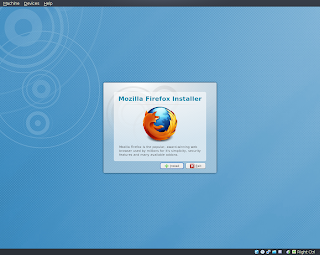

It's found in "Kmenu >> Applications >> Internet".

I would install PlasmaNotify, to have Firefox notifications blend in with Kubuntu native ones.

Also, since you're dual booting, why not consider using Xmarks to sync the bookmarks?
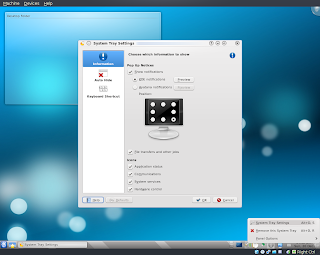
Click on the little "i" in the system tray, and configure. Change the notification system to "Ayatana". You can preview the notifications to understand why I told you to change it.
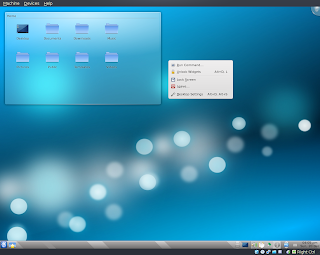
As I said, you can lock and unlock the widgets, allowing you to remove, move, and configure them. Here I've changed the folder widget to show the home folder rather than the desktop folder.
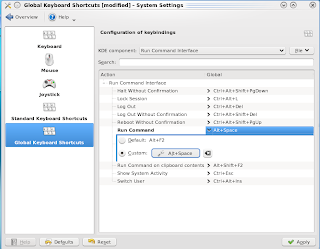
Go to the System Settings, most easily found in "Kmenu >> Computer". Go to "Keyboard and Mouse >> Global Keyboard Shortcuts >> Run Command Interface" and change the shortcut for Run Command to Alt Space.

Once you get familiar with the names of programs, you can simply hit alt space and then the name of the application. It will show you a list of the most relevant matches to your typing, hit enter to launch the program. It's a real time saver. Check it out.
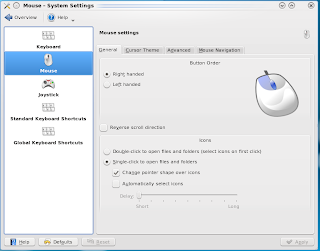

While we're in Keyboard and Mouse settings, you may have noticed that things are single click in nature. I'd say try and get used to using the green plus on hover to select, but if you'd like to go back to the Windows double clicking, feel free to change the behavior.


Do check out all the different settings. You can change any theme or color if you look hard enough.


For applications, please see my post on installing programs.

You'll be wanting to install the Software Center
install
and going to "Kmenu >> System >> Software Center" to check out all the programs you have immediately at your fingertips.


Things I can think you might want to install.

Kubuntu Restricted Extras
install

A collection of fonts, codecs, flash and java, which couldn't be included in the initial package of an open source package, but are fine to add "aftermarket".

VLC
install

The ultimate media player.

Mozilla Mplayer Plugin
install

Let's you watch embedded videos in Firefox.

Mouse Theme Extras
install

Because many colors to pick from are better than a few.

GIMP
install

Best image manipulation program on Kubuntu.

Kdenlive
install

A wonderful non-linear video editor. I've been using it a lot, and love it. The next version is supposed to be more stable/less crash prone.

Wine
install

Let's you try and use windows programs on Linux OS's. Not recommended for the faint of heart, unless you just wanna play the Orange Box.

Yakuake
install

If you learn to like using Konsole commands, this is a drop down terminal like those found in first person shooters like Quake. Set it to a nice keyboard shortcut, and hide/show the terminal at will. You also might never bother with command line much, so maybe you don't need a terminal open 24/7.


DVD Playback

Here's something I almost forgot. There's two ways to do this. The pay way, or the free-and-legal-but-maybe-not-in-america way. I highly suggest whatever you feel like paying.

One, you could go to Fluendo, and purchase the only consumer Linux-compatible DVD playing software.

Or you could pop open Konsole and do the following.

sudo apt-get install libdvdread4

Hit enter.

sudo /usr/share/doc/libdvdread4/install-css.sh

Hit enter, enjoy. This method let's you play DVDs in all of your current Linux DVD players, like Dragon Player, VLC, and Kaffeine.


The last thing we ought to do is to fix the menu where you choose to boot up into Windows or Kubuntu. The guide to make that nicer can be found here.

So, have fun!